Super-Wide Screen: Run KUMA Timer on a Bar Display
On a 2560×720 bar screen, KUMA can sit in a slim strip and leave the rest of the display for a dashboard, Companion or any other app.
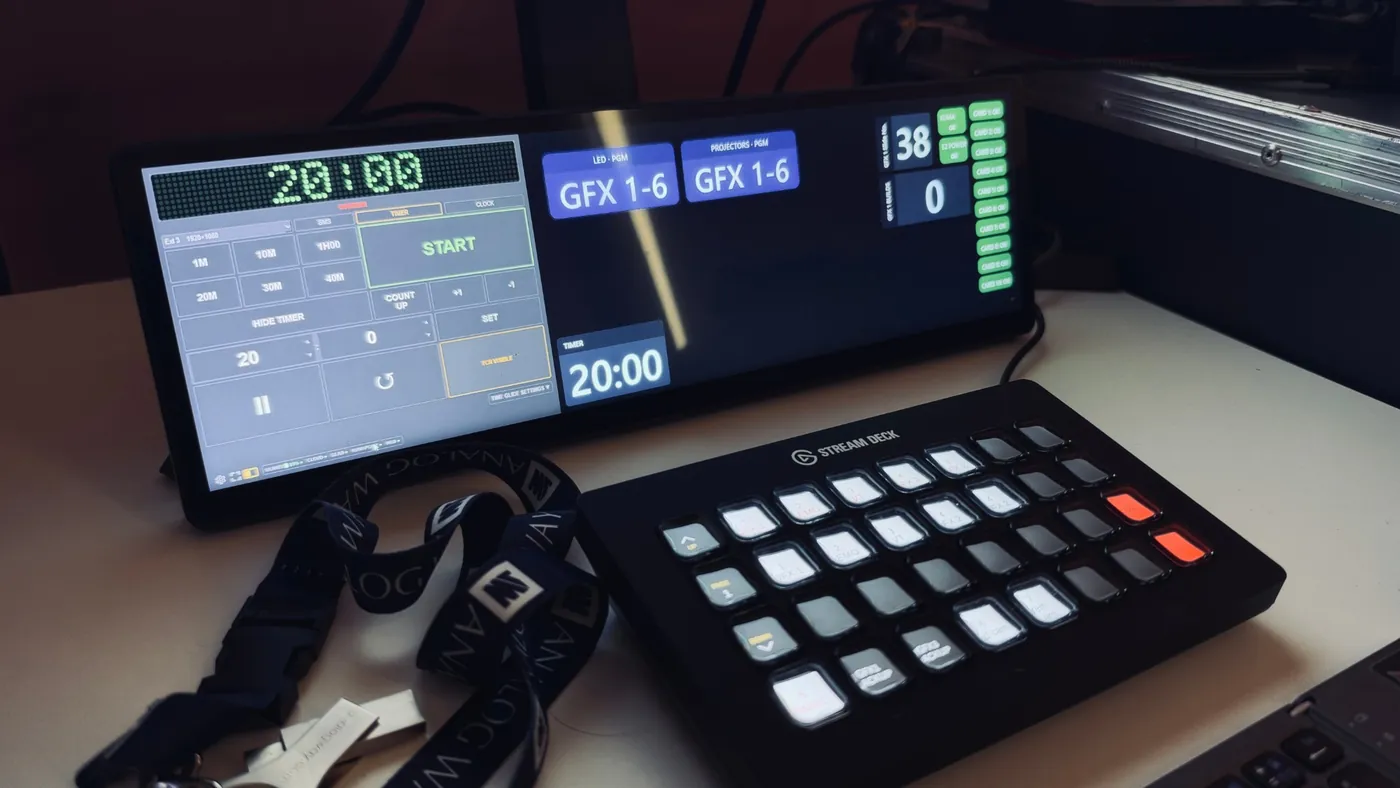
Bar displays such as the Corsair Xeneon Edge are a good fit for a show-control desk: a long, low screen that sits in front of the keyboard and shows everything at a glance. A normal timer window does not suit one. It is too tall for 720 pixels and it covers the screen you want for other things. KUMA 1.20 has a mode made for these screens.
What the wide-screen kiosk does
- KUMA drops its title bar and becomes a full-height strip at the left, centre or right of the screen.
- The strip is as narrow as you want: the layout’s real minimum, a third or half of the screen, or any width you drag it to.
- The rest of the screen stays free for another app, such as a dashboard, Bitfocus Companion’s emulator or a cue list.
How to turn it on
- Connect the ultra-wide screen. The option appears only when KUMA sees a display with an aspect ratio of about 2.3:1 or wider (2560×720, 3440×1440, 5120×1440), so it stays out of the way on a normal monitor.
- Click the wide-screen icon in the bottom bar, next to the full-screen Kiosk icon. You can also press Ctrl/Cmd+Shift+D, or use Settings → General → Wide-screen kiosk.
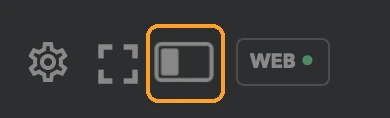
- Right-click the icon to choose where the strip goes and how wide it is.
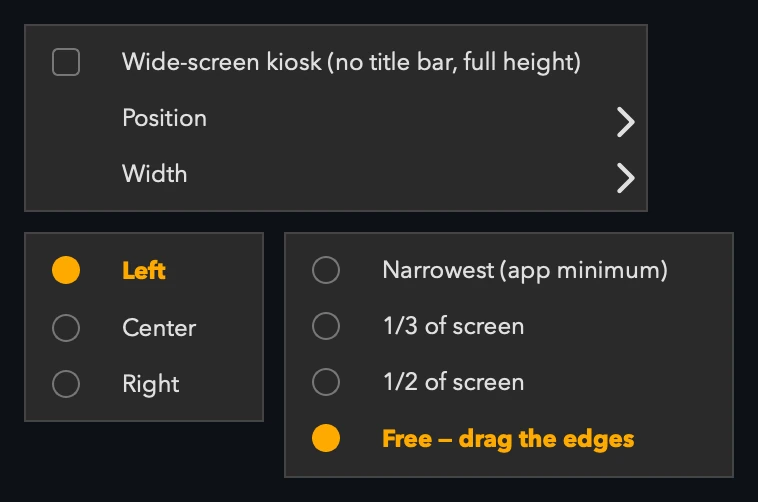
- Free lets you drag the top edge to move the strip sideways, and the left and right edges to resize it.
- The strip always uses the usable height of the screen, below the menu bar or above the taskbar.
- Click the icon again to return to a normal window. If you unplug the ultra-wide screen, KUMA keeps your setting for when it comes back.
Short screens fit too
A 720-pixel-high screen was a problem for the full control layout even before this mode: the bottom of the window was cut off. KUMA now measures its own layout and squeezes buttons, preview and spacing just enough to fit, then restores them on a taller screen. You can switch it off under Settings → General → Auto-fit on short screens.
Making room for other apps
While the strip is active, KUMA’s HTTP API reports where it sits and the usable area of the screen, so another application can place itself in the remaining space. That is how KUMA Dashboard is designed to work: it fills the rest of the bar next to the timer. KUMA Dashboard is coming soon.
Good to know
- Available in KUMA Timer 1.20 on macOS and Windows.
- The wide-screen kiosk is separate from the full-screen Kiosk mode and from the Raspberry Pi kiosk appliance.
- Details are in the documentation.
Want to try it? Download KUMA Timer. The 30-day trial includes everything.