Hand the Timer to Your Show Caller
The host machine stays where it is. Your show caller gets their own controls on a tablet or phone, from the same desk or from across the building.
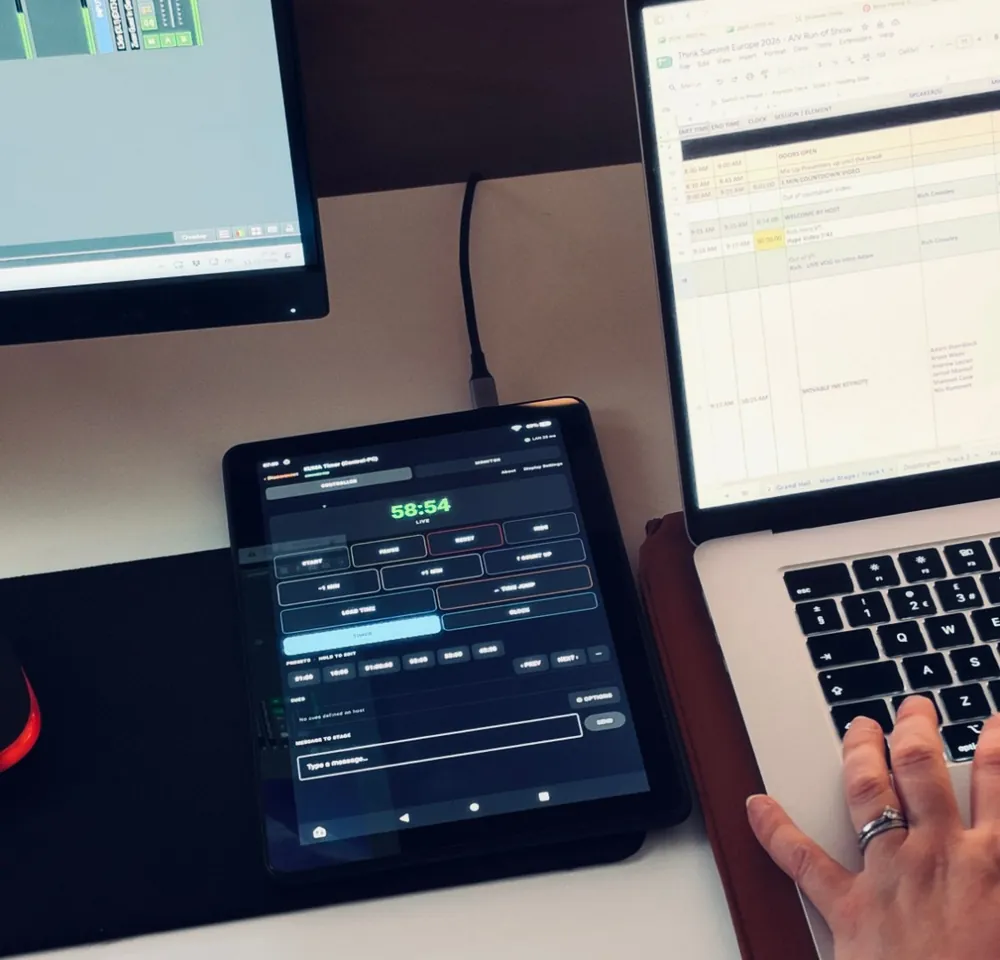
On a live event the person who knows when things happen is rarely the person sitting at the timer machine. The show caller is working from a run of show, calling cues, and watching the stage. Every time they have to ask someone else to start the clock, add a minute or put up a message, a few seconds go missing. A show timer works best when the person calling the show can drive it directly.
Use the Companion app as a remote
The KUMA Companion app for iOS and Android turns any phone or tablet into a controller for your KUMA host. It connects over your local network, or over the cloud relay when the tablet and the host are on different networks (for example a hard-wired show LAN at the back of the room and venue Wi-Fi at front of house).
What the show caller gets
- Start, pause, reset and hide the timer.
- Add or remove a minute, switch to count up, load a new time, or use Time Jump to bring the clock to a target.
- One-tap presets and the cue list, so the next item in the run of show is a single tap.
- Send a message to the stage from the same screen.
- A Monitor view that mirrors what the audience and speakers see.
The tablet in the photo is an Android tablet running the app, sitting beside the caller’s laptop with their run of show. They keep their eyes on the script and one hand on the timer.
You keep the host
The timer itself, its outputs (a stage display, NDI, a hardware LED display) and its licence stay with the host machine. Handing control to the show caller does not mean handing over the computer. You can still run the machine, change settings and fix problems, and you can swap who is controlling at any time, for instance between a rehearsal and the show.
Setting it up
- Install KUMA Timer on the host machine and make sure it is on a Full licence (the Companion apps need it).
- In KUMA open Settings → Connections and enable remote control.
- On the show caller’s phone or tablet, install the Companion app from the App Store or Google Play and scan the pairing QR code from KUMA. One licence can pair several hosts, so a caller moving between rooms can pick the right one from a list.
The full list of controls and pairing options is in the documentation.
A few tips
- Do a quick run-through with the caller before doors open: start, pause, add a minute, send a test message.
- Keep the tablet on its own power. A tablet that dims or goes to sleep at the wrong moment is an avoidable problem.
- If you ever need to cut off a paired device, regenerate the pairing code in Settings → Connections.
Want to try it? Download KUMA Timer. The 30-day trial includes everything, including the Companion apps.